Run Docker on your Mac without a second virtualization stack
1VMTool now runs the Docker engine as one of its own machines and gives containers a workspace beside your VMs — one app, one memory budget, and your existing Docker contexts left alone.

You already run virtual machines on this Mac. Then a project needs Postgres, or
Redis, or a stack of six services that only exist as a docker-compose.yml, and
you install a second piece of infrastructure to get them: another hypervisor,
another background daemon, another slice of the same 36 GiB, managed by an app
that knows nothing about the machines you are already running.
Two virtualization stacks on one Mac is not a configuration anyone chose. It is what happens when the tool that runs your VMs and the tool that runs your containers have never heard of each other. They both reserve memory up front. Neither will tell you the other is the reason your build slowed down.
What changed
1VMTool now runs the Docker engine itself, as one of its own machines, and gives containers a workspace next to your VMs. One app, one memory budget, one place to look.
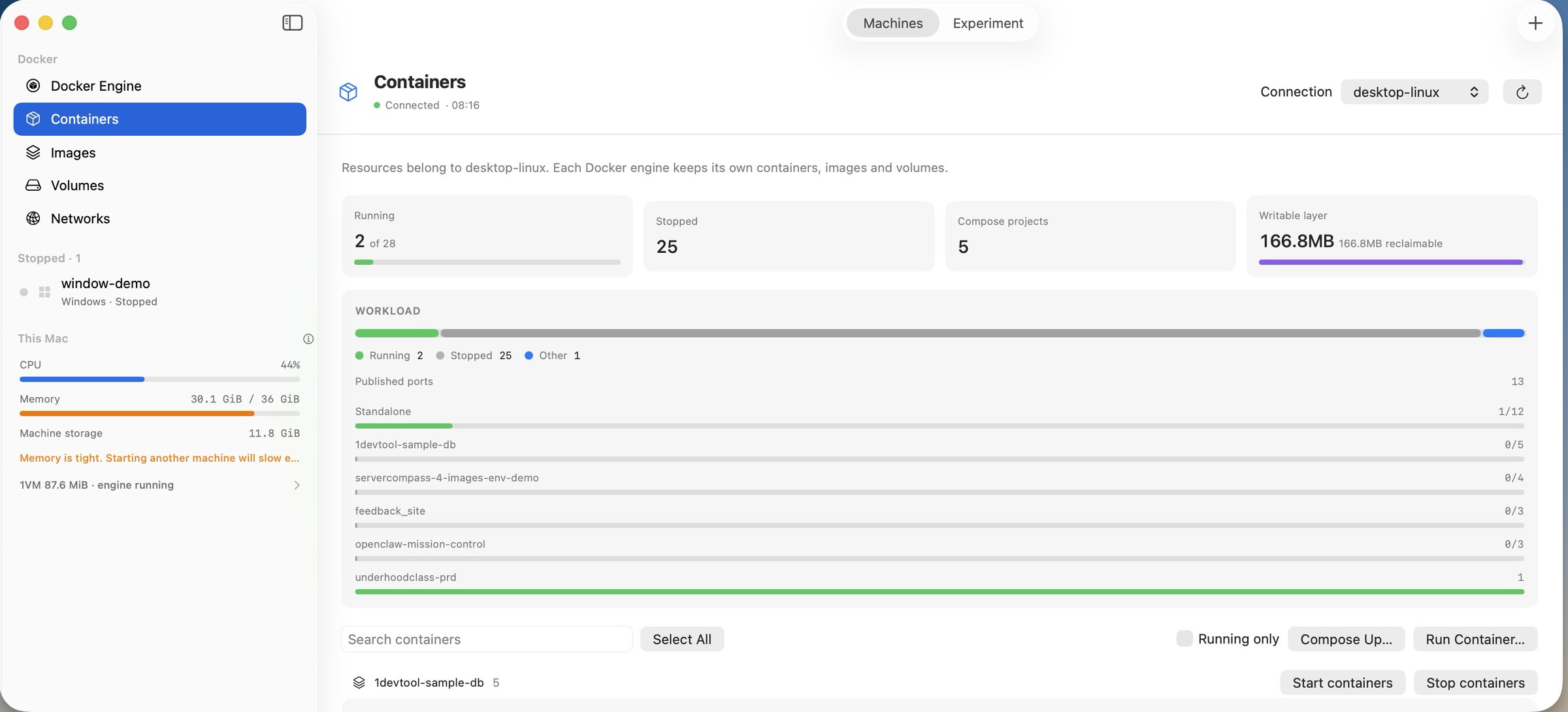
How it works in practice
The engine is a machine you can see
1vm engine setup downloads a pinned Debian 13 ARM64 cloud image, verifies its
SHA-512, provisions Docker into it and boots it on Apple's
Virtualization.framework. It is not a hidden appliance — it appears in the
library, it reports its memory in the sidebar (1VM 87.6 MiB · engine running
in the shot above), and its RAM counts against the same library memory budget
every other machine draws from. When the budget is tight, the app says so before
you start something else rather than after.
The lifecycle is ordinary machine lifecycle:
1vm engine setup            # download, provision, first boot
1vm engine start|stop|restart
1vm engine status --json    # state, socket path, owned Docker context
1vm engine logs             # setup and daemon diagnostics
engine delete --force removes the engine and everything inside it, and the app
says exactly that before you confirm: "This permanently removes every
container, image and volume in the 1VM engine. Other Docker contexts are
kept." Nothing outside the 1VM engine is touched.
Your existing Docker setup keeps working
The engine registers a Docker context named 1vm pointed at a private
docker.sock. It never changes your selected global context. If you already
have Docker Desktop, Colima or a remote host configured, they stay exactly as
they were, and the Connection picker at the top of the workspace switches
between all of them — the screenshot above is driving a desktop-linux context,
not the managed engine.
To aim the CLI at the private socket without touching your context selection:
1vm docker ps
1vm docker compose up -d
That subcommand connects straight to the engine's socket, and if the engine is stopped, the connection starts it. Socket activation deliberately outlives the app: a client that connects after you have quit 1VMTool still gets a running engine.
Containers, grouped the way you think about them
The workspace has five sections — Docker Engine, Containers, Images, Volumes, Networks — and the container list is grouped by Compose project, with anything ungrouped under Standalone. Search filters by name, image, project and status; a Running only checkbox hides the graveyard. Compose Up… picks a compose file, Run Container… runs an image, and per container you get logs, live stats and a Terminal action. Images can be pulled, built, loaded and transferred. The whole view refreshes every five seconds.
Ports stop being guesswork
The same release taught both engines to find the ports a Linux guest is actually listening on and publish them on your Mac's loopback interface, without you declaring anything in advance. There is a Ports tab per machine and a command for scripts:
1vm ports dev
Collisions are arbitrated by the kernel's bind ownership rather than by hope: if something on your Mac already owns port 5432, the forward is reported as a collision instead of quietly stealing the socket. Publishing to the LAN instead of loopback is a per-machine choice, off by default, and the defaults live in Settings → Resources alongside the memory budget.
Before and after
| Before | Now | |
|---|---|---|
| Getting Docker | Install a second virtualization stack | 1vm engine setup |
| Memory | Two apps reserving RAM independently | One library budget covering VMs and the engine |
| Your existing contexts | Whatever the installer decided | Untouched; the engine adds a 1vm context |
| Seeing containers | A separate app, or docker ps | A workspace beside your machines |
| Reaching a guest port | Declare a forward, restart, hope | Discovered and published automatically |
| Removing it all | Uninstall flow, leftovers | 1vm engine delete --force |
Who benefits most
If you already run VMs on this Mac, the engine is the piece that stops the two halves of your local infrastructure from fighting over memory in the dark.
If you keep a Compose file per project, the container list is already sorted
the way your projects are, and 1vm docker compose up -d needs no context
juggling.
If you have avoided containers on a work Mac for licensing reasons, the managed engine is a Debian VM running upstream Docker on your own hardware, and deleting it is one command.
Try it
Docker management uses the host Docker CLI, and Compose and Buildx actions need
their corresponding CLI plugins — everything else ships in the app. Install
1VMTool, run 1vm engine setup, and the containers show up next to the machines
they were always going to share a Mac with.
Virtual machines that reset faster than they clean
1VMTool is a native app for Apple silicon with a full CLI and snapshots that cost almost nothing.