How to install and run Omarchy on a Mac
Omarchy’s official image is x86_64, and an Apple-silicon Mac cannot boot it — not with Rosetta, not with a converter, not at all. The route that does work is an ARM64 build of the same system, and 1VMTool ships one inside the app. You create a machine; the Arch + Hyprland desktop comes up on its own.
The short version
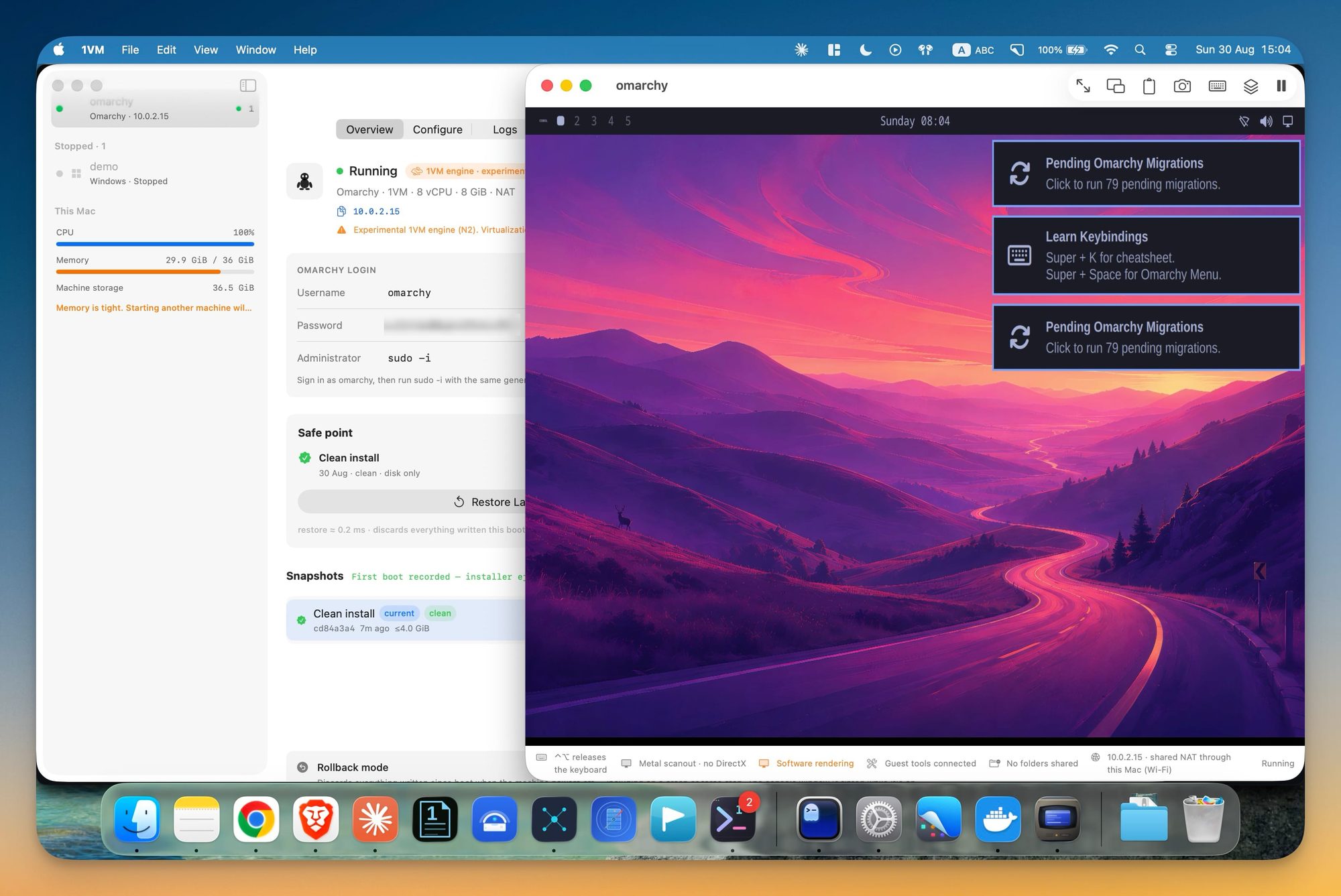
Install 1VMTool, open Experiment → Omarchy, name the machine and press create. A few minutes later a Hyprland desktop is on screen and signed in. No ISO to download, no Docker, no installer prompts, no command line. The desktop is software-rendered — that is the honest trade.
Why the official Omarchy ISO will not boot on a Mac
This is the wall nearly everyone hits first, so it is worth being precise about it. Omarchy publishes an x86_64 installer image. Apple-silicon Macs virtualize ARM64 and only ARM64 — both Virtualization.framework and 1VMTool’s own engine run guest code natively on the CPU rather than emulating a different instruction set. An x86 kernel has nothing to execute on.
Three follow-up questions come up every time:
- Can Rosetta translate it? No. Rosetta can translate selected x86 Linux userspace binaries once an ARM64 Linux kernel is already running. A kernel and an installer ISO are outside what it does.
- Can the ISO be converted? Not meaningfully. Every compiled binary in it is x86 machine code. “Converting” it means rebuilding the distribution for a different architecture, which is exactly what an ARM64 build is.
- What about Asahi or omarchy-mx-mac? Those target bare-metal Apple hardware and drive the real Apple GPU. A guest inside a VM sees virtio devices instead, so that route does not apply here. Asahi replaces macOS; 1VMTool runs Linux beside it.
So the only workable answer on a Mac is an ARM64 Omarchy. The question becomes who builds it, and when.
What 1VMTool does instead
1VMTool builds the ARM64 system ahead of time. The maintainers assemble a factory image — Arch Linux ARM with Omarchy, Hyprland, the pinned package set and a small guest agent already installed — and publish the resulting kernel and root filesystem as a versioned pack.
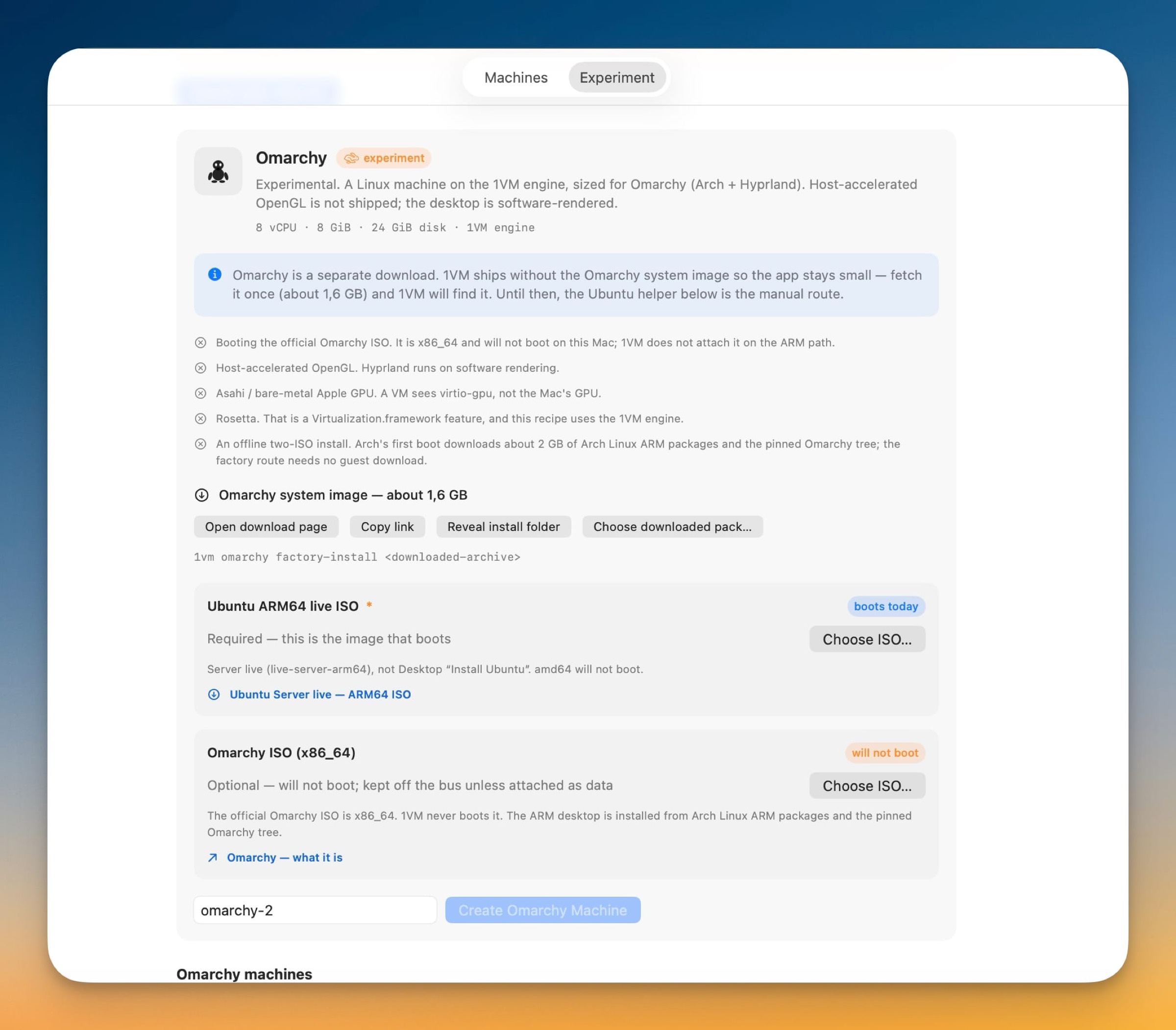
The pack is a separate download, so the app itself stays small: 1VMTool is a 16 MB disk image, and the Omarchy system image is about 1.6 GB fetched once. Run 1vm omarchy factory-url for the link and 1vm omarchy factory-install to expand and verify it, or use the buttons in the app’s Omarchy pane. It installs to ~/Library/Application Support/OneVM/FactoryImages and 1VMTool finds it from there — 1vm omarchy factory-status says whether it is present and whether it verifies.
Docker appears exactly once in this story, and it is not on your machine: it is the maintainers’ build tool for producing that image before release. The shipped app boots the finished artefacts itself. Nothing on your Mac needs Docker, Homebrew, QEMU or a bundled hypervisor — 1VMTool has no third-party runtime dependencies at all.
The practical consequence is that “installing” Omarchy stops being an installation. There is nothing to partition and nothing to download at create time, because the system is already built. Creating the machine copies it onto a fresh disk and boots it.
Requirements
1VMTool sizes the machine against live host metrics rather than against the hardware on the box, so if macOS is already using most of your memory the profile is scaled down and the app tells you instead of quietly overcommitting.
Install it, step by step
Install 1VMTool and open it
1VMTool is a single signed application. Drag it to
/Applicationsand launch it. The download is large because the Omarchy system travels inside the app rather than being fetched later.Requires macOS 26 or later on Apple silicon. There is nothing else to install — no Docker, no Homebrew, no QEMU, no bundled hypervisor.
Open the Experiment tab and pick Omarchy
Omarchy lives under Experiment, and it is labeled an experiment on purpose — the card states its limits before you commit to anything. You can also reach it from New Machine → Omarchy.
When the app is carrying its factory image you will see Factory pack ready. That is the zero-touch route. If instead you are asked for an Ubuntu ISO, you are on a development build without the bundled system — see the two-ISO fallback below.
Name the machine and press Create
The default profile is 8 vCPUs, 8 GiB of memory and a 24 GiB sparse disk, automatically scaled down to what your Mac can spare so the profile is never a promise the host cannot keep. 4 GiB is the hard minimum.
Press Create Omarchy Machine. There is no installer to sit through, no partitioning, no keyboard-layout prompt and no first-run wizard.
Watch three phases go by
The machine badge tells you exactly where it is. The whole sequence is unattended:
- first bootOmarchy is booting from the factory image. 1VMTool copies the root filesystem onto the machine’s own disk and direct-boots the ARM64 kernel.
- creating accountThe guest agent connects over virtio-vsock and 1VMTool creates your
omarchyaccount, grants it sudo, locks root and turns on automatic login to Hyprland. - OmarchyHyprland has produced its first real frame. The desktop is up and the machine is marked ready.
You are signed in — read the login card
The desktop appears already logged in, so you will never be asked for a password to reach it. You still need one for
sudo, and the app shows it in the Omarchy login card on the machine’s Overview tab:Omarchy login- Username
omarchy- Password
20 generated characters- Administrator
sudo -i
Sign in as
omarchy, then runsudo -iwith the same generated password. Direct root login is locked.The password is generated per machine, never travels the kernel command line, and is written into the VM bundle as
omarchy-password.txtwith mode0600. From the CLI,1vm inspect omarchyprints it.Take a safe point before you change anything
This is the part worth forming a habit around. A snapshot in 1VMTool is an APFS clone rather than a disk copy, so taking one is effectively free and restoring lands in a fraction of a millisecond no matter how large the disk has grown.
Omarchy is a system you are meant to tinker with. Take a Clean install safe point the moment the desktop first appears, and every broken theme, half-applied migration or wrecked Hyprland config afterwards costs you a click instead of an afternoon.
What is actually booting
“Booting Omarchy” is a slight misnomer, and knowing why makes the rest of the system legible. Omarchy is not its own kernel or distribution — it is a configured desktop built on top of Arch Linux. What boots is Arch; what you see is Omarchy’s configuration of it.
In order: 1VMTool loads the ARM64 kernel directly rather than chain-loading a bootloader from an ISO. The kernel mounts the Arch root filesystem that was copied onto the machine’s disk. systemd starts, Omarchy’s services and configuration come up with it, and Hyprland is launched into an automatic session. The bundled guest agent connects back to the host over virtio-vsock, which is the private channel 1VMTool uses to create your account — the password never touches the kernel command line and there are no interactive users on the system until that command completes.
What works and what does not
The app states these limits on the Omarchy card before you create anything, and they are worth repeating here rather than discovering later.
Works
- A full Arch + Hyprland desktop, signed in automatically, with Omarchy’s menu and keybindings
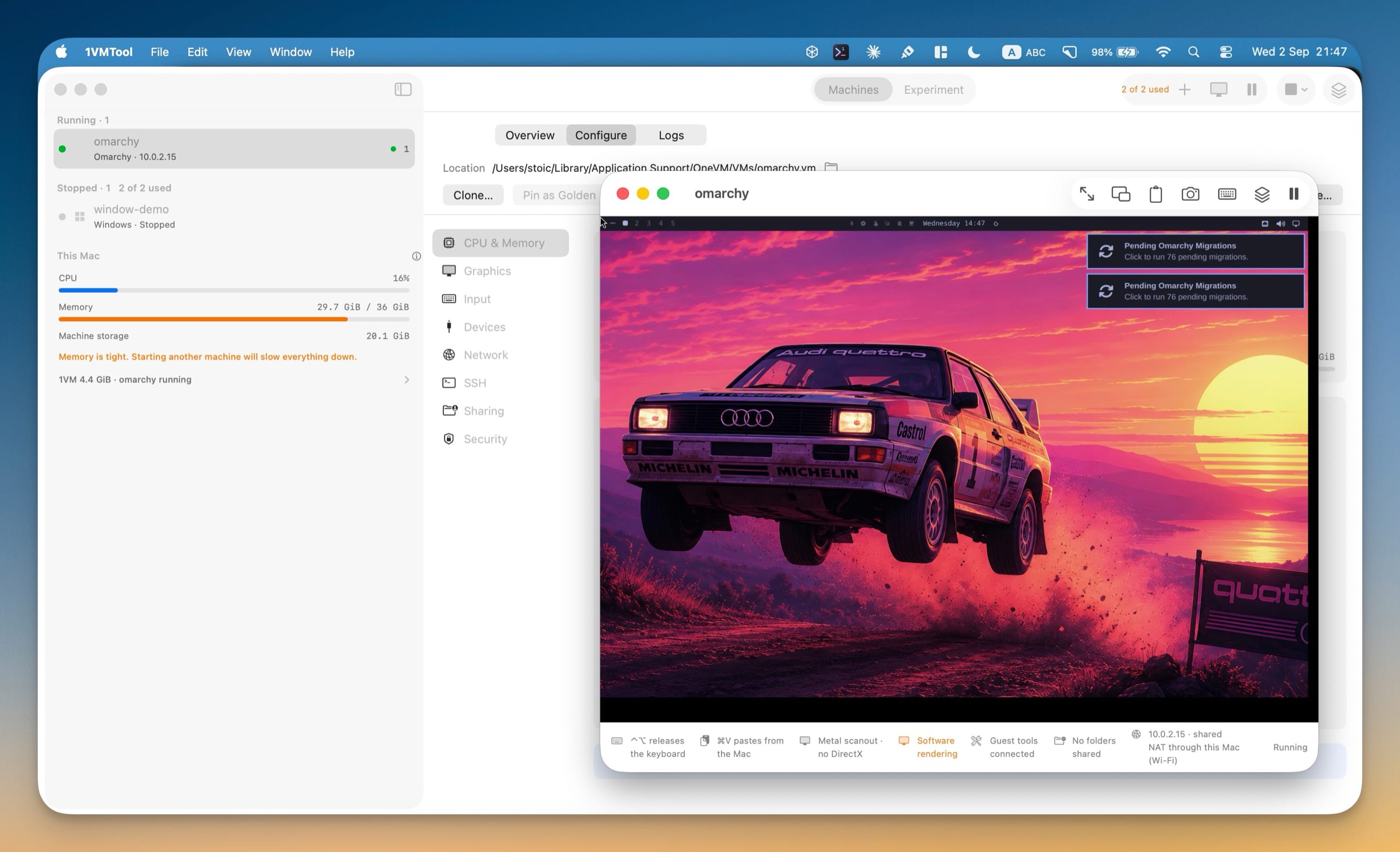
- The guest framebuffer presented in a Metal-backed window, with Mac-shortcut translation and a shared clipboard
- virtio-net NAT shared through your Mac, virtio-input, HDA audio playback
- Sub-millisecond snapshots, rollback mode and named safe points
- The full
1vmCLI for create, start, snapshot, inspect and reset
Does not
- Hardware-accelerated OpenGL. Hyprland runs on software rendering. This is the big one — treat the desktop as a workstation, not a GPU.
- Booting the official Omarchy ISO. It is x86_64 and is never attached on the ARM path.
- Rosetta. That is a Virtualization.framework feature and this recipe uses the 1VM engine.
- The Apple GPU. A guest sees virtio devices, not your Mac’s graphics hardware.
1VMTool describes the window as Metal scanout, not a GPU, and that phrasing is deliberate. The Mac composites the guest’s framebuffer efficiently; it does not accelerate the guest’s 3D. Until a virtio-gpu 3D path ships, do not expect smooth compositor animations or anything GPU-bound.
Why snapshots matter more here than usual
Omarchy is a ricing distribution. The entire point is to change things — themes, keybindings, the Hyprland config, package sets — and changing things breaks them. On real hardware that means a reinstall. Here it means a click.
Because a 1VMTool snapshot is an APFS clone rather than a copy, taking one does not duplicate the disk and restoring one does not rewrite it. Restore lands in roughly two tenths of a millisecond on a 24 GiB machine, and it would land in about the same time on a 240 GiB one. Resetting the VM is genuinely cheaper than cleaning it.
Two habits are worth adopting on day one:
- A Clean install safe point taken the moment the desktop first appears. That is your floor — you can always get back to a working Omarchy.
- Rollback mode when you are experimenting hard. With it on, everything written since boot is discarded at power-off, so the machine returns to its safe point every time it starts.
This is the actual argument for running Omarchy in a VM rather than on metal: not that virtualization is faster — it is not — but that a mistake stops being expensive.
The two-ISO fallback
You may see a different flow that asks for an Ubuntu Server ARM64 ISO. That is the older assisted route, and it appears only in development builds that ship without the factory image. A release refuses to show the Omarchy tile at all unless a bootable system is bundled with it, so if you installed 1VMTool normally you will not meet this path.
What it does, for completeness:
- Boots an Ubuntu Server ARM64 live image as a temporary helper.
- Partitions the VM disk and writes an Arch Linux ARM root filesystem onto it.
- Installs the ARM64 kernel and a bootloader, then powers the helper off.
- Restarts into Arch and runs Omarchy’s ARM
install-bareinstaller. - You answer that installer’s prompts yourself — this route is interactive by nature, because
install-bareis upstream’s interactive installer.
It needs at least 4 GiB of guest memory, working guest networking and patience, since it downloads Arch and upgrades packages inside the VM. The bundled factory route exists precisely so that none of that is your problem.
Troubleshooting
- The Omarchy card asks for an Ubuntu ISO
- Your build has no factory pack — you are on a development build. Install a release, or follow the two-ISO fallback.
- The machine will not start and the app warns about memory
- 1VMTool refuses to create an Omarchy machine below 4 GiB and warns when the Mac is under real pressure. Quit something large, or accept the fitted-down profile. Starting an undersized guest is how the early builds ended up with the kernel killing the provisioning process.
- The keyboard is stuck inside the VM
- Tap ⌃⌥ to release keyboard capture. The console’s status bar tells you which combination is active for that window.
- Omarchy says there are pending migrations
- That notification comes from Omarchy itself, not 1VMTool, and it is expected on a freshly created machine. Take a safe point first, then run them from the notification.
- The desktop feels sluggish
- It is software-rendered, so compositor animations and anything GPU-bound will feel heavy. Terminals, editors and configuration work are fine. Giving the machine more vCPUs helps more than giving it more memory.
- I broke the install
- Restore the safe point. That is the whole reason to take one — and if you skipped it, deleting the machine and creating another is only as slow as copying the factory image again.
Frequently asked questions
- Can you run Omarchy on a Mac?
- Yes, inside a virtual machine. You cannot boot Omarchy's official ISO on Apple silicon because that image is x86_64 and an Apple-silicon Mac only virtualizes ARM64. 1VMTool solves this by shipping a prebuilt ARM64 Omarchy system — Arch Linux ARM with Omarchy and Hyprland already installed — and booting it directly.
- Do I need Docker to run Omarchy on a Mac?
- No. Docker is only used by 1VMTool's maintainers to build the ARM64 factory image before release. The shipped app carries the finished kernel and root filesystem inside its own bundle and boots them itself. Nothing on your Mac needs Docker, Homebrew, QEMU or any other dependency.
- Do I have to download an Omarchy ISO?
- Not on the normal path. The Omarchy system is bundled inside the app, which is why the download is large. The older two-ISO route — an Ubuntu Server ARM64 helper that installs Arch and then runs Omarchy's install-bare script — still exists in development builds that ship without the factory image, but it is interactive and slower.
- Is the Omarchy desktop hardware accelerated on a Mac?
- No. Hyprland runs on software rendering (LLVMpipe) in this preset. 1VMTool presents the guest framebuffer in a Metal-backed window, which is scanout rather than a virtual GPU. The desktop is fully usable for terminals, editors and configuration work, but it is not the route for GPU-bound workloads or gaming.
- What are the login details for the Omarchy VM?
- The username is omarchy. 1VMTool generates a 20-character password when the machine is created, shows it in the Omarchy login card in the app, and stores it in the VM bundle as omarchy-password.txt with mode 0600. The same password works for sudo -i. Direct root login is locked.
- How much disk and memory does it need?
- The Omarchy profile asks for 8 vCPUs, 8 GiB of memory and a 24 GiB sparse disk, then fits those numbers to what your Mac can actually spare. 4 GiB is the hard floor. The disk is sparse, so it only consumes what the guest really writes.
- Can I use Asahi Linux instead?
- Asahi targets bare-metal Apple hardware and drives the real Apple GPU. A virtual machine sees virtio devices rather than that GPU, so Asahi's approach does not apply inside 1VMTool. They solve different problems: Asahi replaces macOS, 1VMTool runs Linux beside it.
- Will Rosetta let me run the x86 Omarchy ISO?
- No. Rosetta can translate selected x86 Linux userspace binaries after an ARM64 Linux kernel is already running. It cannot translate an x86 kernel or an installer ISO, so an x86_64 Omarchy image still will not boot.
Run Omarchy without touching your Mac’s setup
1VMTool is a native app for Apple silicon with a full CLI, honest limits and snapshots that make experimenting cheap.