Know what Docker is holding before you delete it
Containers, Images and Volumes now open with what is live, what it costs on disk and what can be reclaimed — and you can select rows and delete them in one pass instead of one at a time.

Twenty-eight containers. Two of them running. Somewhere in the other twenty-six is a Postgres from a project you finished in June, four images you pulled once to compare base layers, and a volume holding six gigabytes of seed data for a demo that shipped.
You know the disk is going somewhere. Finding out where means docker ps -a,
then docker images, then docker system df, then squinting at three tables
that do not agree about what "size" means, and at the end of it you still delete
things one docker rm at a time because the alternative is a prune command that
takes more than you meant to give it.
What changed
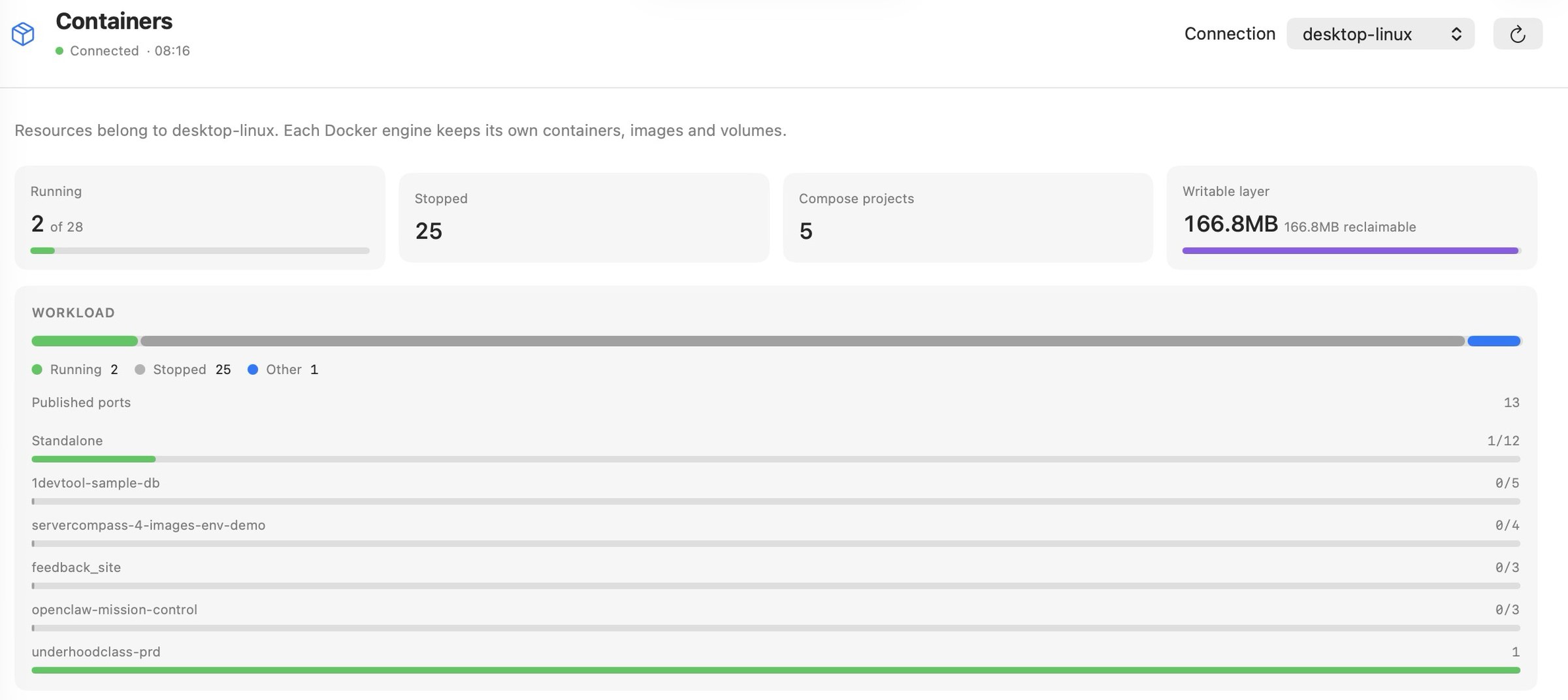
The Containers, Images and Volumes pages now open with a usage overview — what is live, what it costs on disk, and what can go — and you can select rows and delete them together instead of one at a time.
How it works in practice
Four numbers before the list
Each page leads with the four figures that page is actually about.
Containers answers how much is live and how much the writable layer holds:
Running against the total, Stopped (with a paused count when there is one),
Compose projects, and Writable layer with the reclaimable share underneath.
When the engine cannot report disk usage, that fourth tile becomes Published ports instead of showing a confident zero.
Images shows the unique image count with untagged images called out, total
Disk, how many are In use, and Reclaimable. Volumes shows the count,
how many are attached, Disk, and Unused — as a size when the engine knows
one, as a count when it does not.
The figures come from docker system df when the engine reports it and fall
back to what the listings say when it does not. A tile that genuinely cannot
know says so — "Size is unavailable for this engine." — rather than rendering
a zero you would have believed.
The breakdown answers "which one"
Under the tiles, each page carries the card that turns a total into a target.
Containers get Workload: a share bar across running, paused, stopped and
other, the published-port count, and a meter per Compose project showing
running-over-total. In the screenshot above, underhoodclass-prd is the one
project fully up; 1devtool-sample-db is five containers doing nothing. That is
the line you were looking for.
Images get Largest images, each measured against the biggest, plus the build
cache as a separate figure — build cache is frequently the largest single thing
Docker is holding, and it is invisible in docker images. Volumes get
Attachment, the driver mix, and a Not mounted list naming the first five
unattached volumes outright, because "3 unused volumes" is not actionable and
backend_pgdata_old is.
Delete in one pass
Every row in Containers, Images, Volumes and Networks now has a selection
toggle. Select All takes everything the current filter shows — so search or
Running only first, then select, and you are operating on exactly the subset
you were looking at. The count sits in the toolbar as N selected, and
Delete Selected… confirms with what will actually happen.

The confirmation is specific about the danger. For volumes: "All data in these N volumes will be permanently removed. Docker will refuse any deletion while a container uses the volume." For everything else: "This removes the selected resources from <connection>. Running or referenced resources will be kept if Docker refuses the deletion." Docker's own safety rules still apply — the app does not force anything past them — and the selection clears whenever you switch section or connection, so a set picked on one engine can never be applied to another.
One broken listing no longer takes the page down
Also in this release: when a single listing fails — an unreadable image-store blob is the usual culprit — only that list is affected. The engine no longer reads as disconnected, the other pages stay usable, and the message tells you what to repair.
Before and after
| Before | Now | |
|---|---|---|
| What is running | docker ps, then docker ps -a, then subtract | Running 2 of 28 |
| Where the disk went | docker system df, three tables | Tiles per page, with the reclaimable share |
| Which project is idle | Read the names in docker ps -a | A meter per Compose project |
| Biggest images | docker images sorted by eye | A Largest images card, build cache included |
| Unused volumes | A count, then docker volume inspect each | The unattached volumes named |
| Cleaning up | One rm per resource, or a prune that takes too much | Select the rows you meant, delete once |
Who benefits most
If you run several Compose stacks, the per-project meters tell you which ones are still up before you go looking for the one that is eating a port.
If your disk is full today, the reclaimable figure and the largest-images card get you to the two or three deletions that matter, instead of a blanket prune.
If you keep long-lived data in volumes, the named "Not mounted" list is the difference between deleting confidently and not deleting at all.
Try it
Open the Docker workspace, pick a page, and read the four numbers at the top. Whatever you were about to look up on the command line is already there — and whatever you were going to delete afterwards is two clicks away, with the consequences written out before you confirm.
Virtual machines that reset faster than they clean
1VMTool is a native app for Apple silicon with a full CLI and snapshots that cost almost nothing.